Confirm your dividends
When Metrifly detects a dividend for a holding you owned at the ex-date, it creates an unconfirmed event. Confirming it tells Metrifly the amount you actually received, so the payment counts towards your income, yield, and tax. By the end of this, your dividends will be confirmed and your figures accurate.
Dividend statuses
Section titled “Dividend statuses”| Status | What it means |
|---|---|
| Announced | Declared, but the ex-date hasn’t passed — nothing to do yet |
| Unconfirmed | Detected and waiting for your confirmation |
| Paid | Confirmed and counting in your income and tax |
Where to find unconfirmed dividends
Section titled “Where to find unconfirmed dividends”They appear in two places:
- The Dividends tab on a holding’s detail page, in its Payment History table — grouped by financial year, with a Confirmed X/Y count at the top.
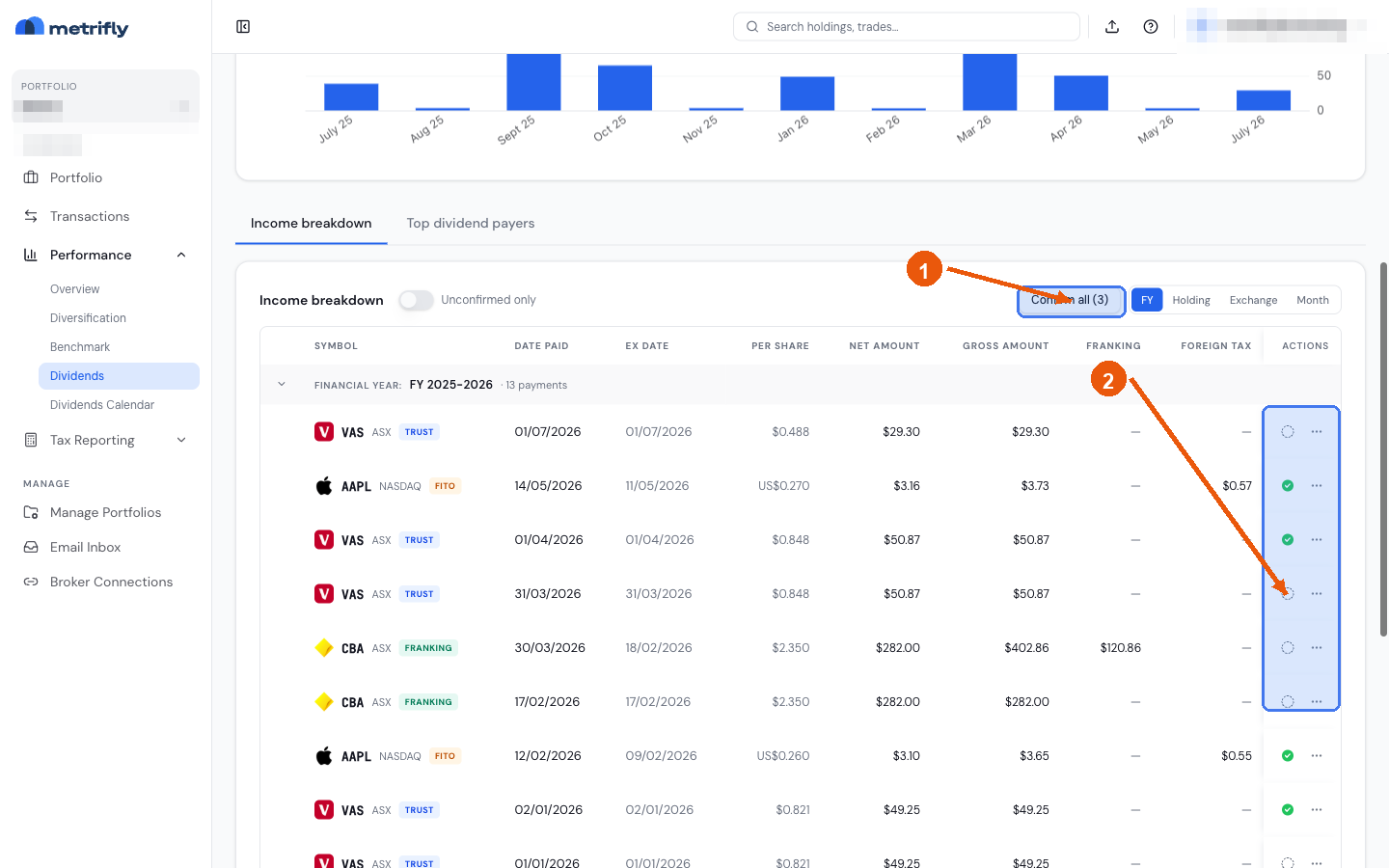
- The Performance → Dividends page, in the Income breakdown table — across every holding in the portfolio, with a Confirm all button.
- The Tax Dashboard, which flags them before you finalise tax — see Use your tax dashboard.
Confirm a single dividend
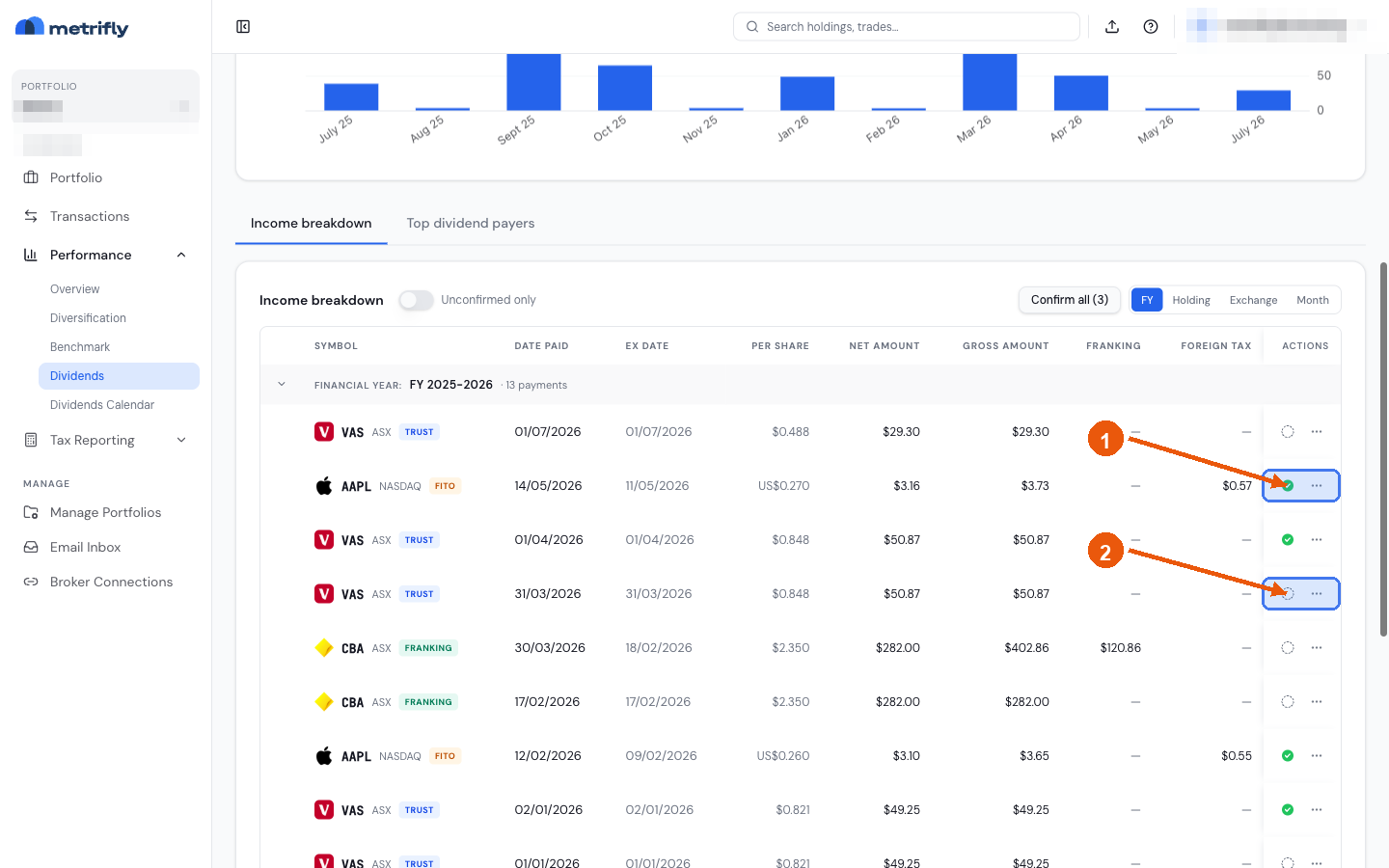
Section titled “Confirm a single dividend”Find the dividend and click the checkmark icon (Mark as confirmed) on its row to open the confirm dialog. After a dividend is confirmed, that same checkmark becomes the undo toggle — click it again to reset back to unconfirmed.

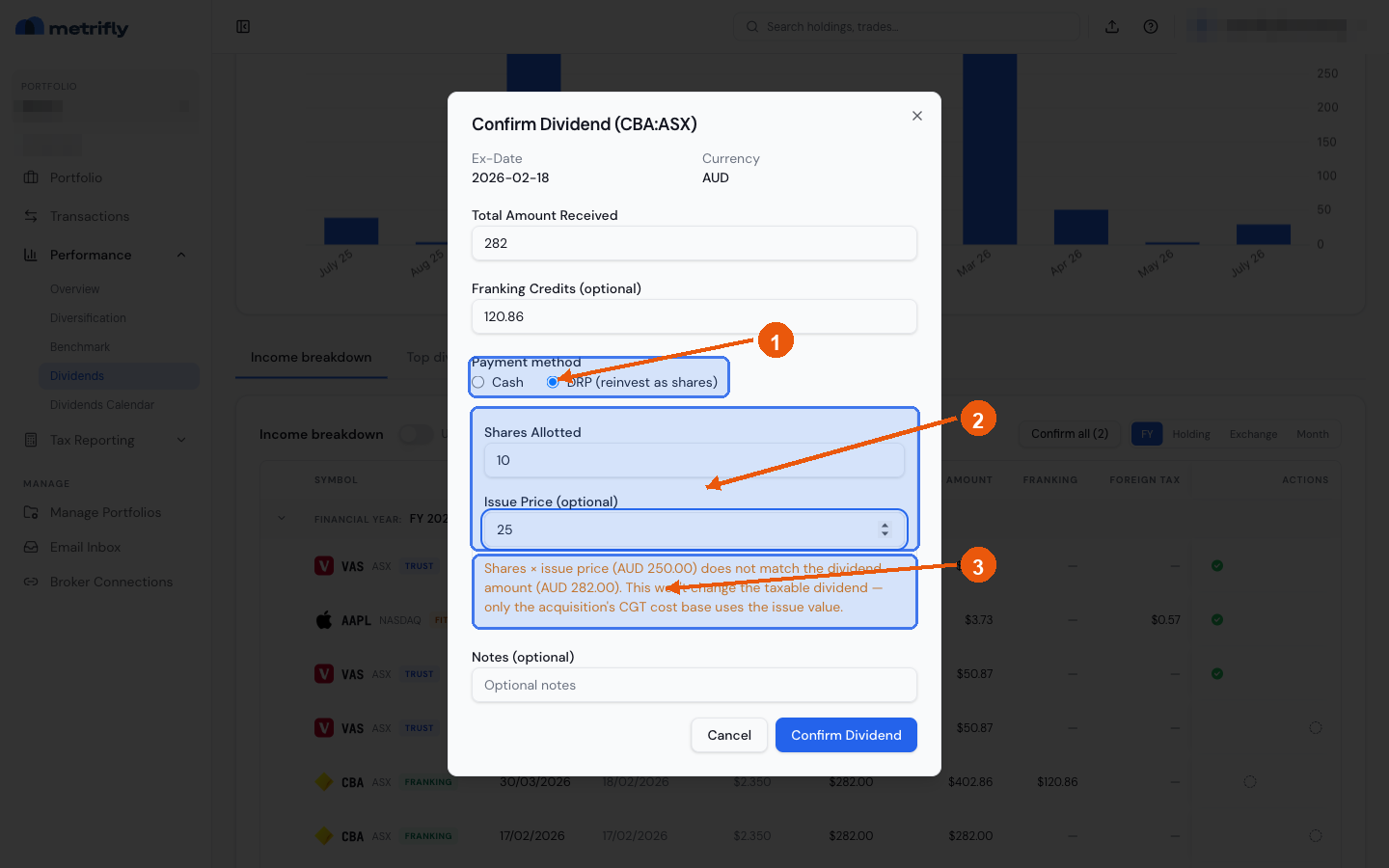
The dialog shows:
| Field | Editable? | Notes |
|---|---|---|
| Ex-Date | No | The ownership cut-off date |
| Currency | No | The currency the dividend was paid in |
| Total Amount Received | Yes | The total cash you received — pre-filled with the detected estimate |
| Franking Credits | Yes (optional) | Australian franking credits — leave blank if none |
| Payment method | Yes | Cash or DRP (reinvest as shares) — defaults to DRP if the holding is enrolled in dividend reinvestment |
| Shares Allotted | Required if DRP | The number of new shares the reinvestment bought |
| Issue Price | Optional, DRP only | The price per share the registry issued at — used for the acquisition’s cost base |
| Notes | Yes (optional) | A free-text note for yourself |
You enter the total you received, not a per-share rate. Click Confirm Dividend to save. See Record reinvested dividends (DRP) for the full DRP walkthrough, including the shares/issue-price mismatch warning.
Confirm all at once
Section titled “Confirm all at once”On the Performance → Dividends page, Confirm all (N) confirms every unconfirmed dividend in the list as cash, using the detected estimates, without opening each dialog.
Dividends belonging to a holding enrolled in DRP are skipped — they need Shares Allotted before they can be confirmed, so bulk confirm can’t fill that in for you. The result reports both counts:

Confirm the skipped ones individually instead, choosing Payment method: DRP and entering the shares allotted.
Edit before confirming
Section titled “Edit before confirming”Open the row’s More actions (3-dot) menu and choose Edit to change the Total Amount Received, Franking Credits, or Notes before confirming. Saving updates the dividend but leaves it unconfirmed — you still need to confirm it afterwards.
Dismiss or undo
Section titled “Dismiss or undo”- Dismiss — if a detected dividend doesn’t apply (a duplicate, or one you didn’t receive), open the row’s More actions (3-dot) menu and choose Delete.
- Undo — click the confirmed checkmark icon again to move a dividend back to unconfirmed. If it was confirmed as DRP, the paired reinvestment (the extra shares) is removed too — see Reset a DRP dividend to unconfirmed.
Franking credits
Section titled “Franking credits”Australian companies often pay franked dividends, where tax has already been paid at the company level. When confirming one, enter the franking credit amount from your dividend statement in the Franking Credits field — it flows through to your taxable income report. Leave it blank if the dividend is unfranked.
Troubleshooting
Section titled “Troubleshooting”| Problem | Fix |
|---|---|
| No confirm icon on a row | The dividend may still be Announced — confirmation opens once its ex-date passes. |
| The detected amount is wrong | Use Edit and correct Total Amount Received before confirming. |
| You confirmed the wrong one | Click the confirmed checkmark icon again to unconfirm it, then use More actions to edit or delete it. |
| It should have been reinvested | Choose Payment method: DRP and enter Shares Allotted — see Record reinvested dividends (DRP). |
| Confirm all left one unconfirmed | That holding is enrolled in DRP — bulk confirm skips it so you can allot shares individually. |
| The Tax Dashboard still flags dividends | Confirm every dividend on each affected holding, or use Confirm all. |