

Set up your first portfolio
A portfolio is the container for one tax entity’s investments — your holdings, performance, dividends, and tax reports all live inside it. The first time you log in, Metrifly’s onboarding wizard creates this for you. It takes about a minute: name the portfolio, pick a tax entity and currency, and you’re in.
You don’t create the first portfolio by hand — the wizard does it. Once it’s created, Metrifly takes you straight to the Add & import hub so you can get your holdings in. This guide walks you through each step.
Before you start
Section titled “Before you start”You’ve created your account and logged in for the first time. If not, start with Create your Metrifly account.
Walk through the onboarding wizard
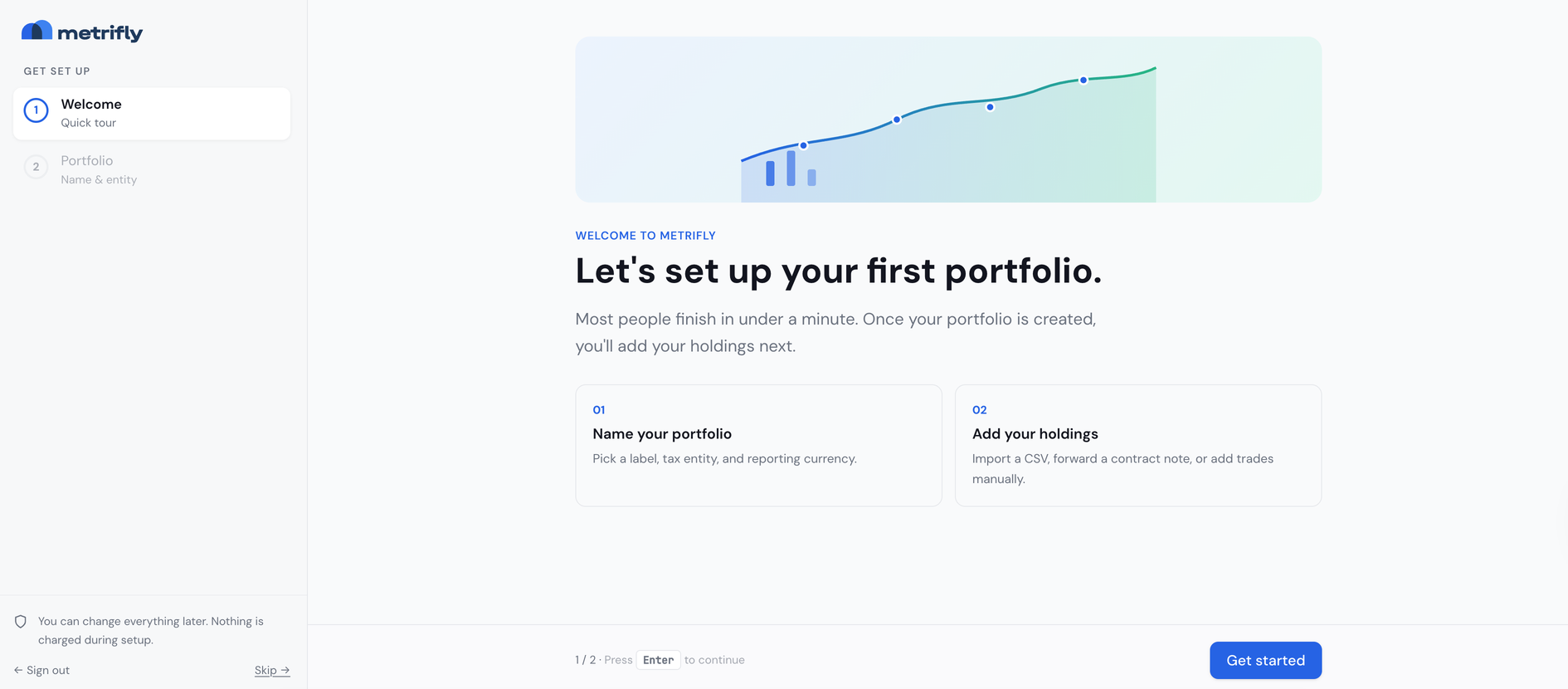
Section titled “Walk through the onboarding wizard”The wizard has two steps, and the whole thing is about creating your portfolio:
- Welcome — read the intro, then click Get started.
- Portfolio — give your portfolio a Name, choose a tax entity, and pick a reporting currency. Then click Create portfolio.
Metrifly creates your portfolio and opens the Add & import hub, where you add your holdings next. Adding holdings is a separate step you do from the hub once your portfolio exists — the wizard’s only job is to create the portfolio.
Choose your portfolio settings
Section titled “Choose your portfolio settings”A couple of choices on the Portfolio step are worth getting right up front:
- Tax entity — Individual, SMSF, Company, or Trust. This drives which capital gains tax rules Metrifly applies. You can change it later in Change your portfolio settings.
- Reporting currency — pick from Metrifly’s supported currencies (AUD, USD, GBP, EUR, and more). Everything is reported in this currency. The app may label this field default currency.
Add your holdings
Section titled “Add your holdings”As soon as your portfolio is created, Metrifly opens the Add & import hub. There’s no rush — your portfolio is already live, so you can add holdings now or come back later. You have four ways to get trades in, and you can mix them:
| Choice | What happens |
|---|---|
| Link a broker directly | Connect a supported broker or exchange for automatic trade sync. (Starter plan and above.) |
| Import a file | Upload a CSV or Excel export from your broker. Most people start here if direct link isn’t available. |
| Add a trade manually | Record a single buy, sell, or dividend by hand. |
| Forward broker emails | Forward your broker’s contract-note confirmations and let Metrifly add the trades for you. (Starter plan and above.) |
For the full walkthrough of each, see Add & import your investments. You can return to this hub any time from Transactions → Add Holdings.
Set your preferences
Section titled “Set your preferences”Your new portfolio starts with sensible defaults — including FIFO lot allocation and a 1 July financial year start for Australia. You can change these whenever you like:
- Lot allocation, financial year, and tax entity — in Change your portfolio settings; see also Set up your tax details.
- Notifications — dividend payments, corporate actions, and price alerts, from your account settings.
Good to know
Section titled “Good to know”- Adding more portfolios later. Each tax entity gets its own portfolio. When you’re ready for a second one, see Create and manage portfolios.
- Switching between portfolios. Use the portfolio selector at the top of the sidebar. To see several portfolios as one, combine them with a portfolio group.
- Benchmarks. You can compare a portfolio against market indices — see Set benchmarks for a portfolio.
Troubleshooting
Section titled “Troubleshooting”| Problem | Fix |
|---|---|
| Create portfolio is greyed out | Give your portfolio a name — it’s the only required field. |
| Your portfolio didn’t get created | Check your internet connection and try again. If it keeps failing, contact support. |
| You closed the wizard before adding holdings | Your portfolio is still created. Add holdings any time from Transactions → Add Holdings, or see Add a trade manually. |
| You picked the wrong tax entity | Change it in Change your portfolio settings under the Tax Settings tab. |
| You picked the wrong reporting currency | Currency can’t be edited. Create a new portfolio with the right one. |