

Use your tax dashboard
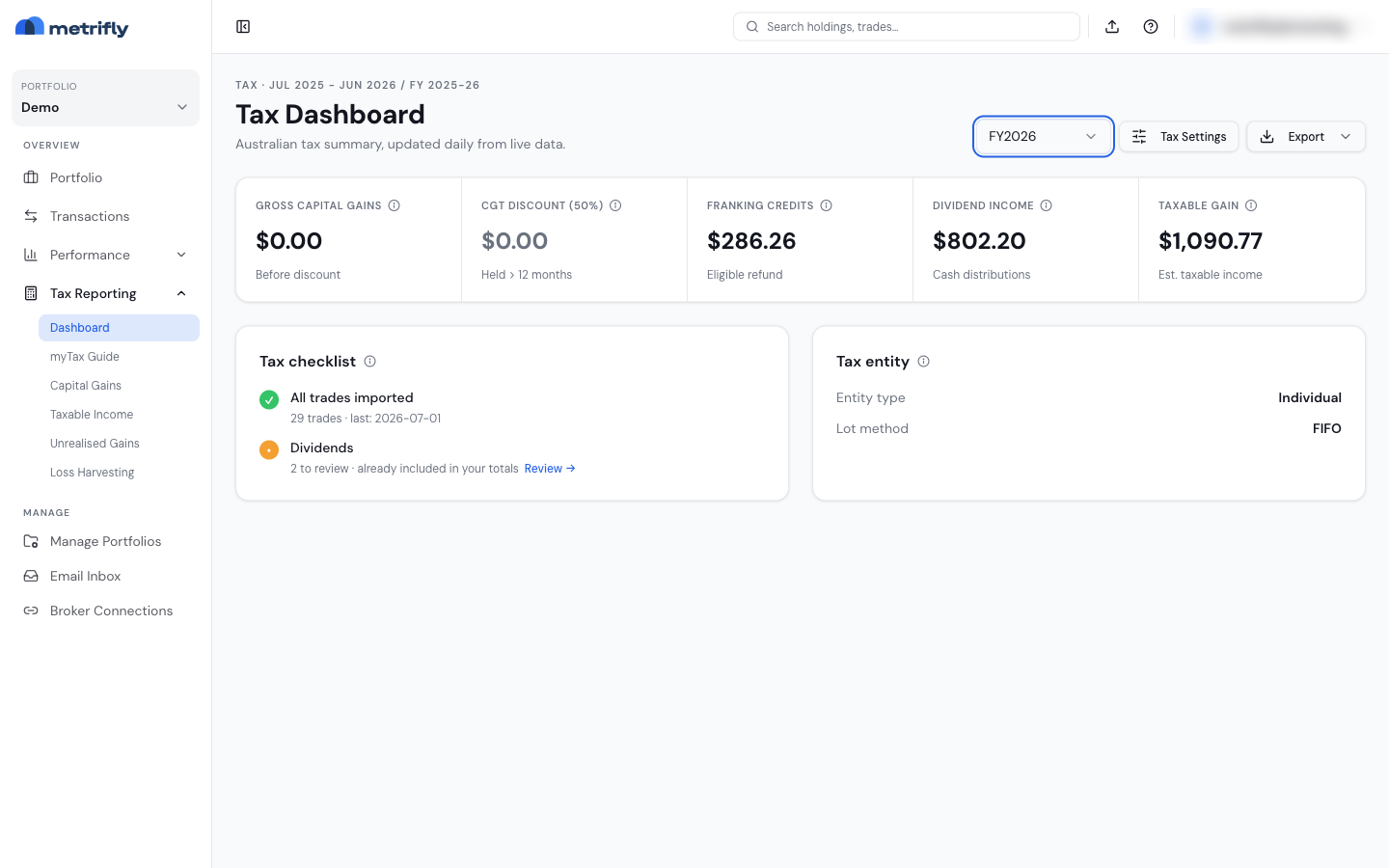
The tax dashboard is your starting point each tax season. It shows your headline figures for the financial year, a checklist of what’s left to do before you lodge, and your entity and allocation settings. By the end of this, you’ll know how to read it and what each checklist item is telling you.
Open the dashboard
Section titled “Open the dashboard”- Select a single portfolio (not a group).
- Go to Tax Reporting → Dashboard.
The header reads Tax Dashboard, with the financial year shown as an eyebrow label (e.g. Tax · FY2025).
Header controls
Section titled “Header controls”| Control | What it does |
|---|---|
| FY dropdown | Sets the financial year for every tax page |
| Tax settings | Opens lot allocation and per-holding overrides |
| Export | Downloads an Excel myTax workbook or a PDF summary |
For item-by-item myTax codes, use the ATO myTax report.
Your summary figures
Section titled “Your summary figures”| Figure | What it means |
|---|---|
| Gross Capital Gains | Your realised gains for the year, before the CGT discount |
| CGT Discount (50%) | The discount on eligible long-term gains (the rate depends on your entity) |
| Franking Credits | Imputation credits on your franked dividends |
| Dividend Income | Cash dividends and distributions received in the year |
| Taxable Gain | A rough combined headline for estimating |
Click the info icon on any figure to see how it’s made up.
Work through the checklist
Section titled “Work through the checklist”The checklist uses three states: a green ✓ means the item is ready, an amber • means it’s worth a quick review — those figures are already included in your totals — and a red ! means you need to add data before you lodge.
| Item | What it tracks |
|---|---|
| All trades imported | Green once you have at least one trade; red when there are none yet. The subtext shows the count and your last trade date. |
| Dividends | Green when no cash dividends are left to review for the year. Amber when you have unconfirmed cash dividends — the row shows how many, with a Review → link. Reads “No dividends this year” when there were none. |
| DRP reinvestments | Only appears if you have reinvested dividends. Green when every reinvestment is confirmed with its shares allocated; amber when some are still unconfirmed or missing a share quantity. Unconfirmed reinvestments are already included in totals, but still need review. |
When you have unconfirmed dividends or reinvestments, the row shows an inline Review → link to Performance → Dividends, filtered to the unconfirmed ones for the same year. See Confirm your dividends.
A suggested routine
Section titled “A suggested routine”| When | What to do |
|---|---|
| Jul–Mar | Import trades and confirm dividends as they’re paid |
| Apr–Jun | Clear any amber checklist items |
| Before 30 Jun | Optionally check tax-loss harvesting and unrealised gains |
| After 30 Jun | Review your taxable income, then lodge with the myTax report |
Troubleshooting
Section titled “Troubleshooting”| Problem | Fix |
|---|---|
| You see an upgrade card | Tax reporting is a paid feature. See Compare plans and pricing. |
| The Dividends item shows items to review | Confirm your unconfirmed dividends on Performance → Dividends. They’re already included in your totals. |
| The CGT discount looks wrong | Check your entity type — SMSF and company differ from individual. |
| Export is greyed out | Wait for the data to load and make sure a single portfolio is selected. |