

Read the holdings table
The holdings table on your portfolio dashboard lists every open holding, with its value and return. This is a reference for what each column means and how to control the table. Click any row to open that holding’s detail page.
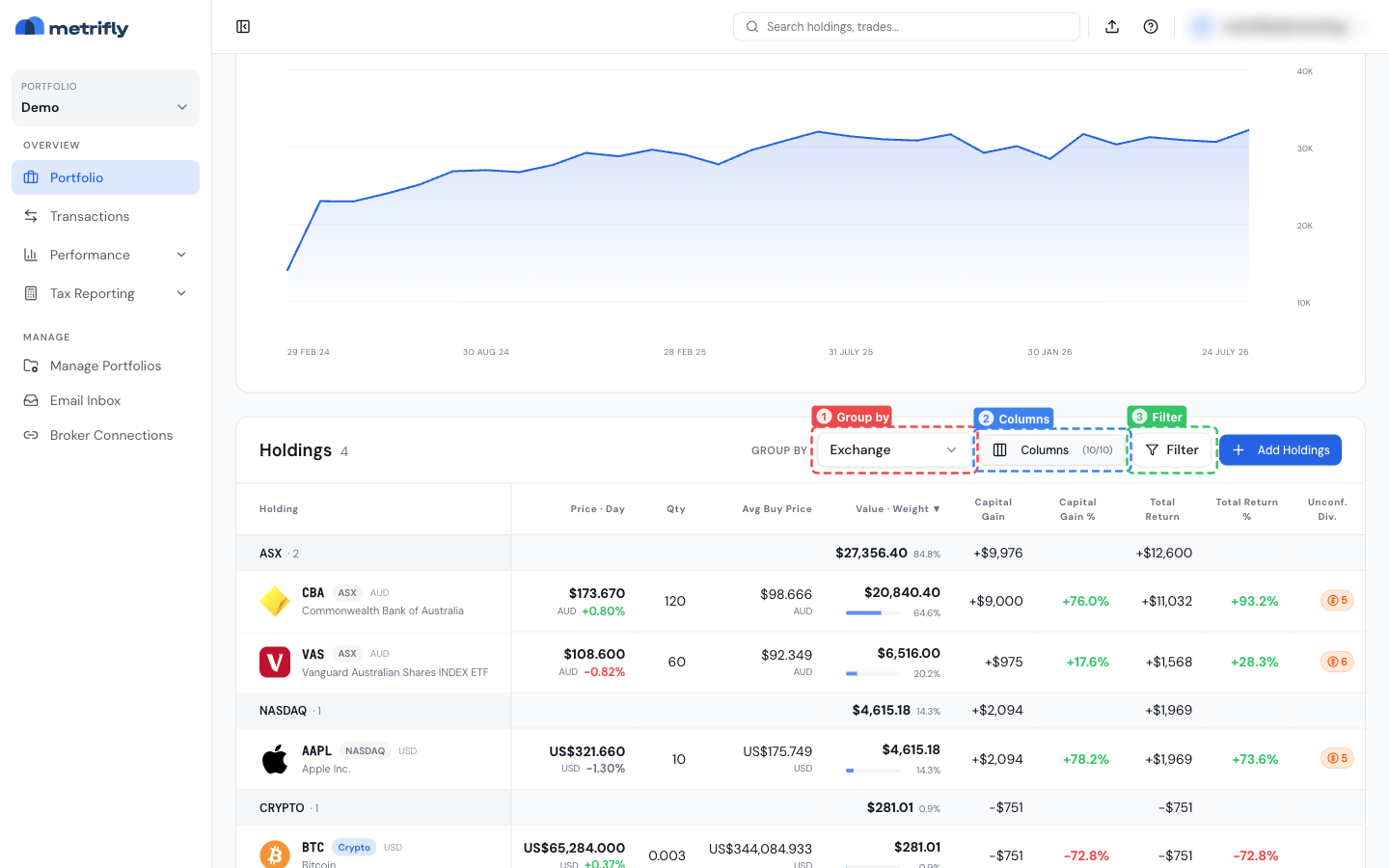
The columns
Section titled “The columns”Left to right:
| Column | What it shows |
|---|---|
| Holding | Ticker, exchange, currency, and asset name. May show a Delisted or Check symbol pill. Pinned and always visible. |
| Price · Day | The latest market price per share (security’s currency), with the day’s movement. |
| Qty | The number of shares you currently hold. |
| Avg Buy Price | Your weighted average purchase price per share, in the security’s currency. |
| Value · Weight | Current market value in your reporting currency, with a bar showing the holding’s weight in the portfolio. |
| Capital Gain | Unrealised gain or loss in your reporting currency. |
| Capital Gain % | Unrealised gain or loss as a percentage of cost. |
| Total Return | Capital gain plus income, net of fees, in your reporting currency. |
| Total Return % | Total return as a percentage of cost. |
| Unconf. Div. | A badge with the count of unconfirmed dividends for the holding. |
A Portfolio total row at the bottom sums value, capital gain, and total return across all visible holdings, and shows the portfolio-level Capital Gain % and Total Return %. It follows the date range you’ve selected on the dashboard.
Sort and choose columns
Section titled “Sort and choose columns”- Sort — click any column header to sort by it; click again to reverse. The default is Value, descending.
- Choose columns — use the Columns dropdown to show or hide columns. The Holding column is pinned and can’t be hidden; Reset returns to the default set. Your choices are remembered next time.
Status pills
Section titled “Status pills”Some holdings show a small pill in the Holding column:
| Pill | What it means |
|---|---|
| Delisted | The security no longer has a live quote. Metrifly values it at the last known price and hides misleading day-change and gain percentages. |
| Check symbol | Metrifly couldn’t match the imported ticker to a priceable symbol. Prices may be stale or missing until it’s corrected — common after broker exports that use internal codes. See Import your trade history from a file. |
If a holding is both delisted and unresolved, only the Delisted pill shows. Crypto holdings show a Crypto badge beside the ticker.
The unconfirmed dividends badge
Section titled “The unconfirmed dividends badge”When Metrifly detects dividends you haven’t confirmed, the Unconf. Div. column shows an orange badge with the count. Click it to jump to that holding’s Income tab, where you can confirm or delete each one. See Confirm your dividends.
Header actions
Section titled “Header actions”- Columns — show or hide columns.
- Filters — attribute filters for narrowing the table.
- Group by — group rows, for example by exchange or one of your custom groups. Each group gets a section row (e.g. ASX · 9) with its own subtotals. Custom groups are available only when you have one portfolio selected.
- Add Holdings — link a broker directly, manual entry, file import, or email setup (hidden in group view).
Open and closed positions are controlled by the page-level Positions dropdown above the table: Open Positions Only (the default) or All Positions.
Troubleshooting
Section titled “Troubleshooting”| Problem | Fix |
|---|---|
| A holding is missing | The table hides closed and zero-quantity holdings by default. Switch the Positions dropdown to All Positions, or check your transaction history. |
| A column you want isn’t showing | Open the Columns dropdown and tick it, or click Reset. |
| An orange badge appears under Unconf. Div. | Metrifly detected dividends awaiting your action. Click the badge to confirm them — see Confirm your dividends. |
| A Check symbol pill appears | The imported ticker couldn’t be matched to market data. Review the trades, or re-import with an ISIN column mapped. |