

Change your portfolio settings
Portfolio Settings is where you configure one portfolio — its name, how returns are calculated, its benchmarks, email import, and tax. By the end of this, you’ll know what each tab does and how to save your changes.
Open Portfolio Settings
Section titled “Open Portfolio Settings”- Open Manage Portfolios from the MANAGE section of the sidebar.
- On the portfolio’s card, open the ⋯ menu and choose Edit — this takes you to the settings page.
The active tab shows in the page URL (e.g. ?tab=benchmarks), so you can bookmark or link straight to a tab.
The tabs
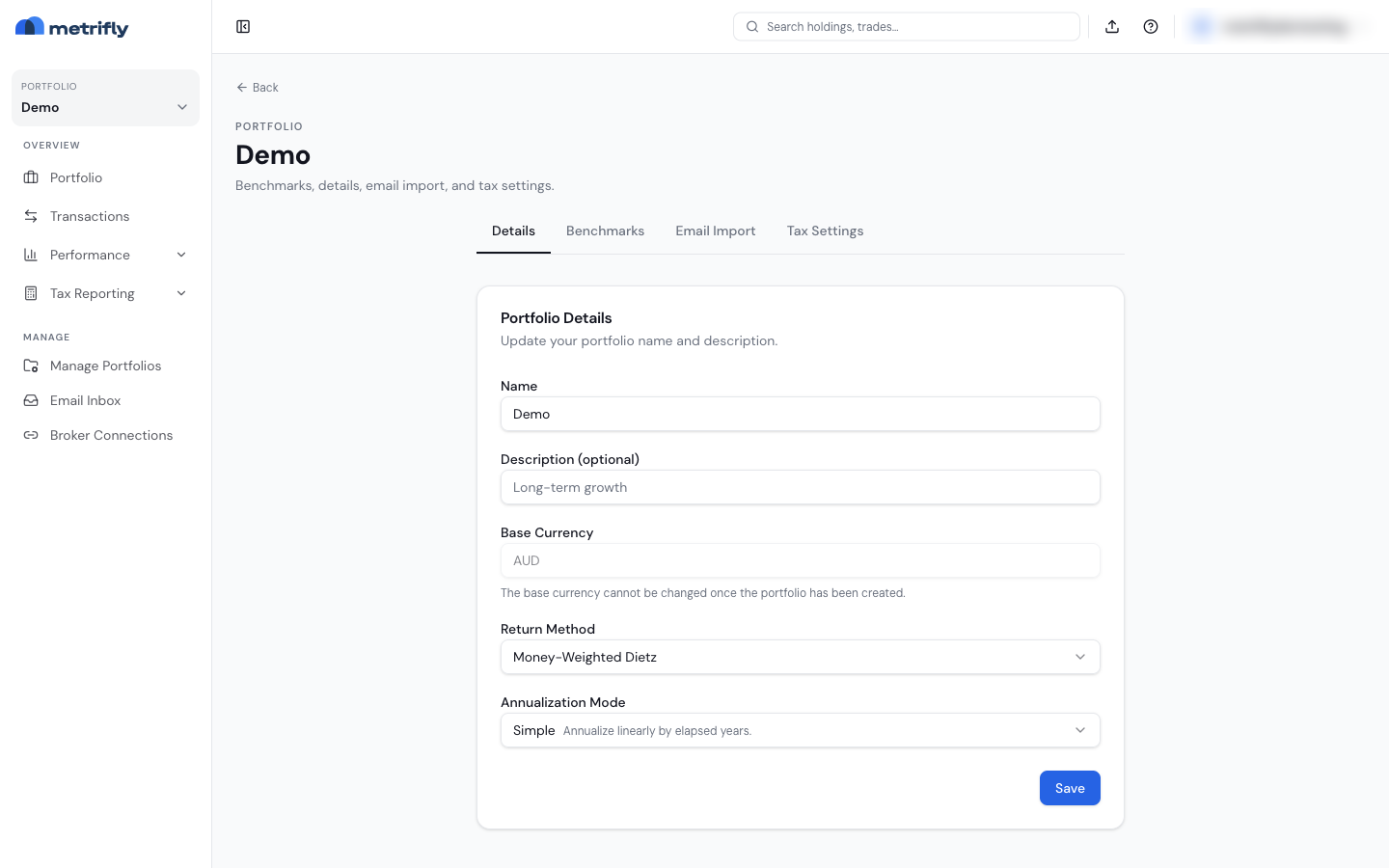
Section titled “The tabs”You’ll see Details, Benchmarks, Email Import, and Tax Settings — you may also see Wallets when the wallets feature is enabled. Each tab has its own Save button — save the tab you edited before moving on.
Details
Section titled “Details”| Field | What it does |
|---|---|
| Name | The portfolio’s display name |
| Description | Short notes about the portfolio |
| Base Currency | Read-only — your reporting currency can’t be changed after creation |
| Return Method | How returns are calculated (currently Money-Weighted Dietz) |
| Annualization Mode | Compound annualises with compounded growth; Simple annualises linearly by elapsed years |
Benchmarks
Section titled “Benchmarks”Configure up to 3 benchmarks for the portfolio, then Save. Every new portfolio starts with the SPDR S&P 500 ETF (SPY). For the full walkthrough, see Set benchmarks for a portfolio.
Email Import
Section titled “Email Import”A unique forwarding address for contract-note emails. This is a paid feature — the Free tier shows a locked Starter+ card. See Auto-import trades from your broker’s emails.
Wallets
Section titled “Wallets”Shown only when the wallets feature is enabled. Link on-chain wallets so Metrifly can track crypto holdings and income where supported.
Tax Settings
Section titled “Tax Settings”| Setting | What it does |
|---|---|
| Entity Type | Individual, Company, Trust, or SMSF — sets which CGT discount rules apply |
| Default Allocation Method | FIFO, LIFO, Maximise gain, Minimise gain, or Minimise CGT — sets which parcels are sold first |
Troubleshooting
Section titled “Troubleshooting”| Problem | Fix |
|---|---|
| Settings redirects to a group page | A group is selected — switch to a single portfolio in the sidebar selector. |
| The Base Currency field is greyed out | That’s expected — your reporting currency is fixed at creation. |
| The Tax Settings tab shows “Loading…” | Give it a moment, or refresh the page. |
| Your changes didn’t save | Each tab has its own Save button — make sure you clicked Save on the tab you edited. |